
Redaction tool
In this article, you will become familiar with the details that offers the document anonymization feature in our system.
To start with, acquaint yourself with the main principles of redaction provided by Fordata VDR:
✅ Single User Redaction: Only one user can redact a selected document at any given time.
✅ Save Drafts: You have the option to save a draft version of the document and continue working on it in the future, or an additional user with Admin rights can do so.
✅ Reversible Edits: Both the draft and the saved redacted version of the document can be reverted to the original document version at any time.
✅ Continued Redaction: You can continue redacting on a document that already has changes saved.
✅ Downloadable PDF: The downloaded PDF document on your computer will contain redacted areas.
✅ Folder Structure Concealment: Users won't be able to see, within the folder structure, which document has been redacted.
✅ Administrator Access: Administrators can download the original document at any time without needing to undo changes.
- Manual Document Redaction:
Within the Documents tab and further under Structure Management and Document Upload, expand the structure, then select the PDF file you plan to edit. Right-click on it, and choose the Redact option. The document will open in a new window with an editing panel. (fig. 1)
Click on the Redact Area and choose from the available options: (fig. 1)
| Text selection: | Use this function to hide text selectively. |
| Area selection: | Use this function to hide a specific area on the page (e.g., an image, a map, a photo, or a stamp). |

- Text selection (gif 1):
- Click and drag over the word or words you want to cover.
- To preview the redaction, activate the slider next to the preview icon.
- To remove a selected redaction, click on the area and choose the trash icon.
- Click and drag over the word or words you want to cover.

- Area selection (gif 2):
- Click and drag over the desired area on the page to conceal.
- To rotate the covering square, click on it, select the rounded arrow icon, and adjust the angle.
- To preview the redaction, activate the slider next to the preview icon.
- To remove a selected redaction, click on the area and choose the trash icon.
- Click and drag over the desired area on the page to conceal.

- Automatic Document Redaction using Word Search and Patterns:
Within the Documents tab and further under Structure Management and Document Upload, expand the structure, then select the PDF file you plan to edit. Right-click on it, and choose the Redact option. The document will open in a new window with an editing panel. (fig. 2)

| Search & Redact: | You can input a word present in the document. The system will locate all instances of that word and apply redaction. |
| Patterns: | For patterns, you can select one or more categories from the available list (e.g., email addresses, PESEL numbers). The system will find all instances in the file and apply redaction |
-
Search and Redact:
With this feature, you can enter a word, and all its occurrences in the document will be redacted. (gif 3)
- Click on the option and enter the word you want to find and redact throughout the document.
- The screen's right side will display the number of occurrences for the chosen word in the text. You can expand the list for details, including navigating to each instance and making changes (e.g., removing individual redactions).
Specify selected words or phrases, regardless of the language. VDR will locate them in the document and redact them.
Note! You can perform automatic word search and redaction collectively, which means you input a word, confirm it, add more words - confirm again, and so on. The list of all selected words and the number of occurrences are continuously updated on the right side of the edited document.

-
Patterns
With this feature, you can select one or more categories from the available list below. The system will find all instances in the document and redact them. (gif 4):
| Email addresses |
| Phone numbers |
| Credit card numbers |
| PESEL numbers |
| IP addresses |
| URL addresses |
| IBAN numbers |
| Date / Time |
- Click on the option and select one, multiple, or all categories from the available list. The system will search for them in the document and apply redactions.
- The screen's right side will display the number of occurrences for the chosen category or categories in the text. You can expand the list for details, including navigating to each instance and making changes (e.g., removing individual redactions).

- Managing Redacted Documents
-
To streamline the anonymization process, within the Structure Management and Upload tab of the panel, you can see the statuses assigned to the documents (fig.3):
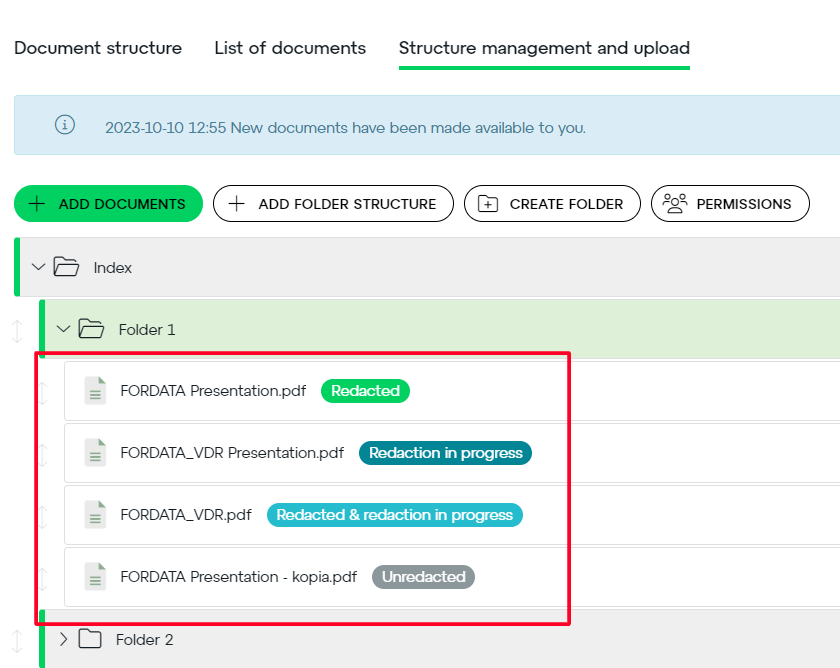
fig. 3
|
Redacted |
The document has been redacted and saved, but it can still be edited if needed. |
| Redaction in progress | A saved draft version of the redacted document. You or another administrator can open it and continue work. |
| Redacted & redaction in progress | The document has been redacted and saved. Later, you initiated the editing of this document again, adding additional redaction areas and saving a draft version. You or another administrator can open the file and continue work. |
| Unredacted | The redacted areas on the document have been reverted to the previous (original) version. |
| Redaction failed | This kind of label is very unlikely however if appears on the document that means the redaction fails due to technical difficulties. Please contact FORDATA SUPPORT urgently. |
- You don't need to open the document at all to start editing it. Depending on the status, right-click on the file to initiate redaction, continue work, or restore the original. (gif. 6)

- Within the document editing panel, you have the option to remove individual redacted areas as well as all of them collectively within a selected category. (gif. 5)

- While in the Structure Management and Upload section, you have the option to download documents that have been redacted, both with and without hidden areas, without needing to undo changes. This is because the system continuously stores the original versions in memory. (gif. 7)

Do you have additional questions?
#FORDATAteam is for you.
Contact us via email support@fordatagroup.com
or at phone number:
+48 53 53 53 774
+48 53 53 53 775